PC and Laptop Components Guide India (November 2026): SSD, RAM, Hard Disk


PC components such as the SSD, RAM and hard disk decide how fast a laptop or desktop boots, how many tabs and apps it can juggle and how much you can store. Upgrading the right part is often the cheapest way to make an older machine feel new, and choosing the right parts when you buy saves money later.
This guide is part of TopReviews and sits next to our laptop guides. It explains which PC components matter, how to check what fits your laptop or desktop, and lists storage and memory we checked against the maker's spec sheet and confirmed in stock on 4 November 2026.
On this page
- PC components at a glance
- SSD: the PC component that matters most for speed
- RAM: how much memory and which type
- Hard disk: still the cheapest storage per terabyte
- Best PC components we checked
- Other PC components in a desktop
- How much storage and memory do you need?
- How to check which PC components your laptop has
- Buying PC components in India: tips
- Common mistakes when upgrading PC components
- How to upgrade PC components in a laptop
- FAQs
- Final word
- More buying guides
PC components at a glance

These are the PC components most buyers upgrade, with what each one does and what to check before you buy.
| Component | What it does | Typical speed | Check before buying | Our pick |
|---|---|---|---|---|
| NVMe M.2 SSD | Main drive for Windows and apps | 3,500–7,400 MB/s | M.2 2280 slot, PCIe generation | Crucial P3 Plus |
| SATA 2.5-inch SSD | Upgrade for older laptops with a hard disk bay | Up to 550 MB/s | 2.5-inch bay, SATA port | Crucial BX500 |
| Laptop RAM (SODIMM) | Working memory for tabs and apps | DDR4-3200 to DDR5-5600 | Free slot, DDR type, not soldered | Crucial DDR5-5600 |
| Desktop RAM (DIMM) | Working memory for desktop PCs | DDR5-4800 and up | Motherboard DDR type, slot count | Crucial DDR5-4800 |
| Internal hard disk | Cheap bulk storage in desktops | Up to 220 MB/s | 3.5-inch bay, SATA power | Seagate BarraCuda 2TB |
| External hard disk | Backups and file transfer | About 100–140 MB/s | USB port, backup software | Seagate Expansion 1TB |
For most laptops, the two PC components worth upgrading are storage and memory. The processor and graphics are soldered to the board and cannot be changed.
SSD: the PC component that matters most for speed

Moving from a hard disk to an SSD is the single biggest speed gain among PC components. Boot time drops from a minute to seconds and apps open almost instantly.
NVMe or SATA?
Almost every laptop sold since 2019 has an M.2 slot that takes an NVMe SSD. Older laptops and many desktops also have a 2.5-inch SATA bay. NVMe drives are 6 to 13 times faster in sequential reads, but a SATA SSD still feels far quicker than any hard disk.
Check the size and PCIe generation
Nearly all laptops use the M.2 2280 size (22 mm wide, 80 mm long). A PCIe 4.0 drive works in a PCIe 3.0 slot at the lower speed, so the Samsung 990 EVO Plus or Crucial P3 Plus is a safe choice for older and newer laptops alike. Our full best SSD for laptop guide compares ten drives and explains M.2 and PCIe compatibility. Our laptops by storage page and is 512GB SSD enough explainer help you pick a capacity.
RAM: how much memory and which type
RAM is the PC component that lets you keep many apps and browser tabs open. In 2026, 16GB is the sensible minimum for Windows 11, 8GB is acceptable only for light study use, and 32GB suits video editing, virtual machines and heavy multitasking.
First check whether your laptop's RAM can be upgraded at all. Many thin laptops use soldered LPDDR5x memory with no free slot. If there is a SODIMM slot, match the DDR generation: DDR4 and DDR5 modules are keyed differently and are not interchangeable. Crucial's System Scanner lists the exact modules your machine supports.
Memory prices in India have risen sharply through 2026 because of the global DRAM shortage, so check the live price before you buy. Our laptops by RAM guide compares laptops by memory if a new machine makes more sense than an upgrade.
Hard disk: still the cheapest storage per terabyte
Hard disks are the slowest PC components for storage but still cost the least per terabyte. Use them as a second drive in a desktop for photos, videos and game libraries, or as an external backup drive. Do not install Windows on a hard disk in 2026.
A 7200 RPM 3.5-inch drive like the Seagate BarraCuda 2TB only fits desktops. For laptops, use a portable USB drive such as the Seagate Expansion 1TB and follow the maker's support guides for backup setup.
Best PC components we checked
Each pick was checked against the maker's specification page and confirmed in stock on 4 November 2026. Prices change daily, so check the live price.
Crucial P3 Plus 1TB PCIe 4.0 NVMe M.2 SSD
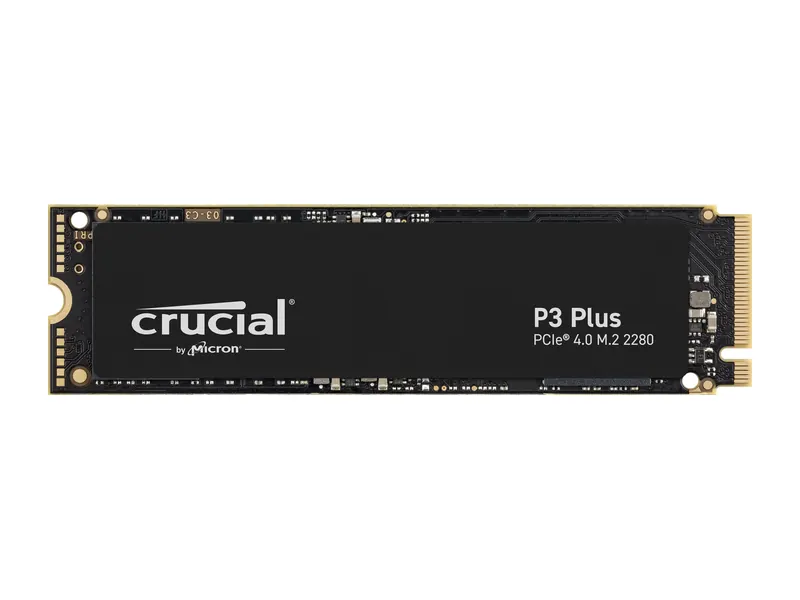
A fast Gen4 drive that also works in Gen3 laptops, and one of the most widely rated SSDs on sale in India.
- Interface
- PCIe Gen4 x4 NVMe
- Form factor
- M.2 2280
- Read / write
- Up to 5,000 / 4,200 MB/s
- Endurance
- 220 TBW
- Warranty
- 5 years
Samsung 990 EVO Plus 1TB NVMe M.2 SSD
Near the top speed of PCIe 4.0 with low power draw, which suits laptops as well as desktops.
- Interface
- PCIe Gen4 x4 / Gen5 x2 NVMe 2.0
- Form factor
- M.2 2280
- Read / write
- Up to 7,150 / 6,300 MB/s
- Endurance
- 600 TBW
- Warranty
- 5 years
Crucial BX500 500GB 2.5-inch SATA SSD
Swap out the hard disk in an older laptop or desktop and it will boot in seconds.
- Interface
- SATA 6Gb/s
- Form factor
- 2.5-inch, 7 mm
- Read / write
- Up to 540 / 500 MB/s
- Warranty
- 3 years
Crucial 16GB DDR5-5600 Laptop Memory (SODIMM)
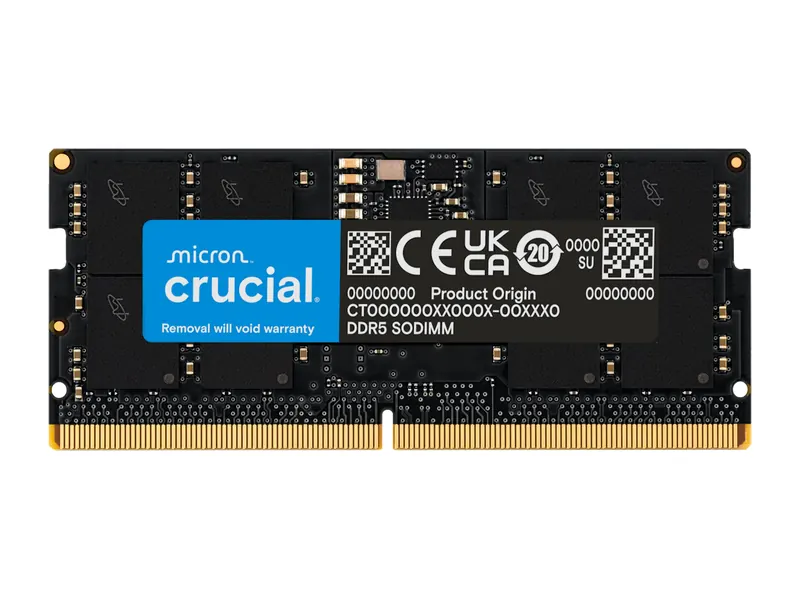
Also runs at 5200 or 4800 MT/s in older DDR5 laptops.
- Type
- DDR5 SODIMM
- Speed
- 5600 MT/s, CL46
- Voltage
- 1.1 V
- Warranty
- Limited lifetime
Crucial 8GB DDR4-3200 Laptop Memory (SODIMM)
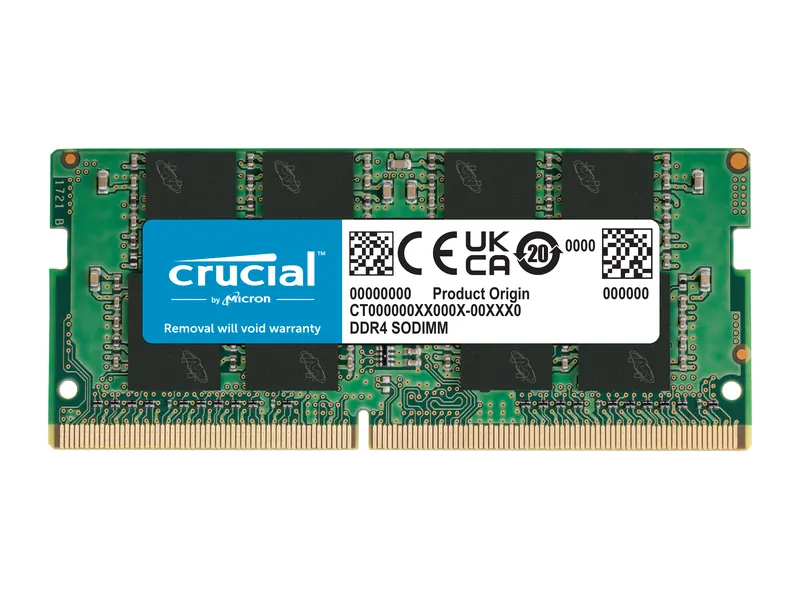
Add it to an 8GB DDR4 laptop to reach 16GB in dual channel.
- Type
- DDR4 SODIMM
- Speed
- 3200 MT/s, CL22
- Voltage
- 1.2 V
- Warranty
- Limited lifetime
Crucial 16GB DDR5-4800 Desktop Memory (UDIMM)
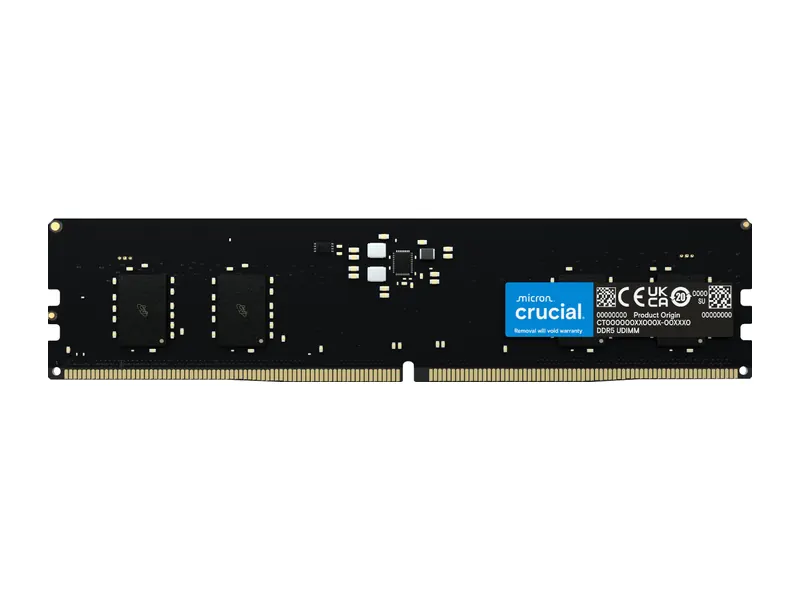
A plain JEDEC-speed module that works in any DDR5 desktop board without XMP or EXPO tuning.
- Type
- DDR5 UDIMM
- Speed
- 4800 MT/s, CL40
- Voltage
- 1.1 V
- Warranty
- Limited lifetime
Seagate BarraCuda 2TB 3.5-inch Hard Drive
Cheap bulk space for a desktop second drive.
- Interface
- SATA 6Gb/s
- Speed
- 7200 RPM, 256MB cache
- Transfer
- Up to 220 MB/s
- Warranty
- 2 years
Seagate Expansion 1TB Portable Hard Drive
A pocket-size backup drive for any laptop.
- Interface
- USB 3.0
- Compatibility
- Windows and Mac
- Extras
- Rescue Data Recovery Services
Other PC components in a desktop
A desktop lets you change almost every part, so it helps to know what the remaining PC components do before you plan an upgrade or a new build.
Processor (CPU)
The processor runs Windows and every app. In a desktop it sits in a socket on the motherboard, so you can replace it with a newer chip that uses the same socket, such as AMD AM5 or Intel LGA 1851. Laptop processors are soldered and cannot be changed. Our laptop processor guide explains Intel and AMD naming if you are comparing laptops instead.
Graphics card (GPU)
A dedicated graphics card handles games, 3D work and video effects. On a desktop it plugs into the long PCIe x16 slot and needs enough power connectors and case length. In laptops, the GPU is part of the motherboard. See our integrated vs dedicated graphics explainer to decide whether you need one at all.
Motherboard
The motherboard connects all PC components. It decides which processor socket, how many RAM slots, which DDR generation, how many M.2 slots and which PCIe generation you get. Check the board's spec page before buying memory or storage, because a board limits every other upgrade.
Power supply and cooling
The power supply (PSU) must deliver enough clean power for the processor and graphics card with some headroom. Buy an 80 Plus rated unit from a known brand. Good airflow and a decent CPU cooler keep parts from slowing down under load. SSDs and RAM draw little power, so adding them rarely needs a bigger PSU.
How much storage and memory do you need?
Choosing the size of these PC components matters as much as choosing the brand. Use this as a simple guide for Indian buyers in 2026.
| Use | SSD size | RAM |
|---|---|---|
| School, browsing, Office | 512GB | 8GB to 16GB |
| College, coding, multitasking | 512GB to 1TB | 16GB |
| Gaming | 1TB to 2TB | 16GB to 32GB |
| Photo and video editing | 1TB to 2TB plus a hard disk | 32GB |
Modern games take 80GB to 150GB each, and Windows updates need free space, so keep at least 15 percent of the SSD empty. If you store large media libraries, add a hard disk or external drive rather than paying for a very large SSD.
How to check which PC components your laptop has
You can see most of your current PC components without opening the case.
- RAM: open Task Manager, go to Performance, then Memory. It shows the total, speed, form factor and how many slots are used. If it says "Slots used: 1 of 2", you can add a second module.
- Storage: in Task Manager under Disk, the type shows SSD or HDD. Device Manager lists the exact drive model, which you can search to see if it is NVMe or SATA.
- Model number: the sticker under the laptop or the System Information app gives the exact model. Search it on the maker's support site to find the hardware maintenance manual.
Free tools such as CPU-Z show the memory type, timings and motherboard in more detail.
Buying PC components in India: tips
A few checks save money and trouble when you buy PC components online in India.
- Buy from the brand store or a sold-by-brand listing where possible, so the warranty is honoured. Crucial, Samsung and Seagate all run Indian warranty and RMA services.
- Keep the invoice. SSD and RAM warranties usually need a GST invoice for a claim.
- Check the exact part number on the listing against the maker's spec page. Names like "1TB NVMe" hide big differences between PCIe 3.0, 4.0 and DRAM-less drives.
- Watch prices. Memory and SSD prices moved a lot in 2026. A short wait for a sale can save a meaningful amount, but do not wait if your current drive is failing.
- Avoid very cheap unbranded SSDs. They often use low-grade flash, slow down sharply after the cache fills and have weak warranties.
When the upgrade is done, check that Windows sees the full capacity and that TRIM is on for the SSD. Most new drives come with free migration and health tools from the maker.
Common mistakes when upgrading PC components
Most failed upgrades come down to a handful of avoidable errors. Check these before you order any PC components.
Buying the wrong SSD size or key
Some thin laptops use the shorter M.2 2230 or 2242 size, and a few older models only accept SATA M.2 drives with a B and M key. A 2280 NVMe drive will not fit those slots. The service manual or the maker's spec page lists the supported length and interface.
Mixing very different RAM modules
Two modules of different size or speed usually work, but the pair runs at the slower speed and may drop out of dual channel. For the best result, add a module that matches the existing one in size, speed and type, or replace both with a matched kit.
Ignoring heat in small laptops
Fast PCIe 4.0 and 5.0 drives can get hot. In a laptop without airflow over the M.2 slot, a drive with a very high peak speed may throttle. A thin graphene label, as on most laptop-friendly drives, is fine; a tall heatsink usually will not fit.
Skipping the backup
Always back up before you swap storage. Cloning tools are reliable, but a power cut or a wrong click during cloning can wipe data. An external hard disk is the cheapest insurance.
Forgetting BitLocker
Many new Windows 11 laptops encrypt the drive by default. Save your BitLocker recovery key from your Microsoft account before you clone or move the drive, or you may be locked out after the upgrade.
How to upgrade PC components in a laptop
Before buying PC components for a laptop, search your exact model number with "service manual" or check the maker's spec page for free M.2 slots and RAM slots. Back up your files, shut down fully, disconnect the battery if the manual says so, and use an anti-static strap. To move Windows to a new SSD, clone the old drive with the SSD maker's free tool or do a clean install from a USB stick.
Opening the bottom cover does not void the warranty in India for most brands, but check your laptop maker's policy first.
After the upgrade, update the BIOS and chipset drivers from the laptop maker's support page, run the SSD maker's tool to check the drive health and firmware, and confirm the new memory shows up at the right speed in Task Manager. These quick checks make sure your new PC components deliver the speed you paid for.
Frequently asked questions
What are PC components?
PC components are the parts inside a computer: processor, graphics card, motherboard, RAM, storage (SSD or hard disk), power supply and cooling. In a laptop, only RAM and storage are usually upgradeable.
Which PC components can I upgrade in a laptop?
Usually the SSD and, if it is not soldered, the RAM. The processor and graphics are soldered to the motherboard.
Is NVMe faster than SATA SSD?
Yes. A PCIe 4.0 NVMe SSD reads up to about 7,000 MB/s versus about 550 MB/s for SATA, though both are far faster than a hard disk.
Will a PCIe 4.0 SSD work in a PCIe 3.0 laptop?
Yes. It runs at PCIe 3.0 speed, which is still very fast.
Can I mix DDR4 and DDR5 RAM?
No. They use different slots and are not compatible. Match the type your laptop or motherboard supports.
Why are RAM and SSD prices so high in 2026?
A global memory chip shortage driven by AI data centre demand has pushed DRAM and NAND prices up sharply, so compare live prices before buying.
The final word
For most people, the two PC components that make the biggest difference are a fast NVMe SSD and enough RAM. Add a hard disk only for cheap bulk storage or backups.
If your laptop cannot be upgraded, compare new machines by memory and storage in our RAM guide, storage guide and laptop guides.
Last updated on . Specifications, stock and prices change frequently. Always check the live listing before you buy.
More buying guides

Best laptops under ₹50,000
Looking for the best laptop under 50000 in India? 7 picks for students, home and office, compared on verified specs with honest pros, cons and buying tips.
Read guide →
Best laptops under ₹1 lakh
Best laptop under 1 lakh in India: 8 Core Ultra, Ryzen AI, OLED and MacBook Neo picks compared on verified specs, with honest pros, cons and buying tips.
Read guide →
Best laptops for students
Need the best laptop for students in India? 8 verified picks for CSE, engineering, commerce, design and school, matched to your course and your budget.
Read guide →